
How to Connect Your Domain to Your Minecraft Server
Do you want your players to connect to your Minecraft server using an easy-to-remember domain, like play.yourdomain.com? This tutorial will guide you through configuring the necessary DNS records in Cloudflare and Namecheap.
Part 1: Connecting with Cloudflare
Requirements
- Domain on Cloudflare: Your domain must already be added to Cloudflare and its DNS must be managed by Cloudflare.
- IP and Port of your Minecraft server: Have your server's IP address and port number handy.
- Access to the Cloudflare DNS panel.
Step 1: Access the DNS Panel in Cloudflare
- Log in to your Cloudflare account.
- Select your domain from the main dashboard.
- Go to the DNS section in the left sidebar.
Step 2: Add an A Record
This record will point your subdomain (or main domain) to your server's IP.
- Click on Add Record.
- Configure the record with the following values:
- Type:
A - Name: The subdomain you want to use (e.g.,
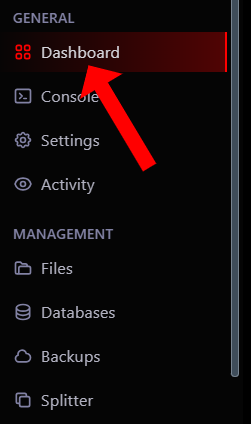
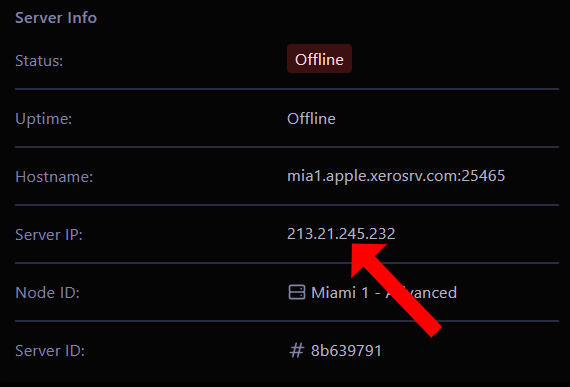
playforplay.yourdomain.com). If you want to use the root domain, type@. - IPv4 address: The IP of your server. You can find it in the Dashboard section.
- Proxy status: Click the cloud icon until it is grey (DNS Only). This is crucial, as Cloudflare does not support Minecraft traffic through its proxy.
- Type:
- Click on Save.
Step 3: Add an SRV Record
This record will tell Minecraft the specific port of your server, allowing for a simpler connection.
- Click on Add Record again.
- Configure the record with the following values:
- Type:
SRV - Name:
_minecraft._tcp.yourname(replaceyournamewith the subdomain you configured in the A record, e.g.,_minecraft._tcp.play). If you used@for the root domain, simply put@here as well. - Priority:
1 - Weight:
1 - Port: The port number of your Minecraft server (e.g.,
25565). - Target: The IP or subdomain of your server (e.g.,
mia1.apple.xerosrv.comor your server's IP). - TTL: Leave as
Auto.
- Type:
- Click on Save.
Important Notes
- Disable Cloudflare Proxy: Make sure the cloud on your
AandSRVrecords is grey (DNS Only). Cloudflare is not compatible with Minecraft traffic through its proxy, so if it's orange, the connection will not work. - DNS Propagation: It can take a few minutes up to 24 hours for DNS changes to propagate globally. During this time, your domain might not work immediately.
Troubleshooting
- "Server not found" error: Verify that the
AandSRVrecords are configured correctly and that the cloud is grey (DNS Only) for both. - Incorrect Port: Confirm that the port configured in the
SRVrecord is exactly the same as your server's port.
Part 2: Connecting with Namecheap
Requirements
- Domain registered with Namecheap: Ensure you have access to your domain's DNS settings from your Namecheap account.
- IP and Port of your Minecraft server: Have your server's IP address and port number handy.
- Access to the DNS management panel in Namecheap.
Step 1: Access the DNS Panel in Namecheap
- Log in to your Namecheap account.
- Go to the "Domain List" section and select the domain you want to configure.
- Click on "Manage" and then on the "Advanced DNS" tab.
Step 2: Add an SRV Record
Minecraft uses SRV records to find your server on a specific port.
- Click on "Add New Record".
- Select the Type
SRV. - Configure the fields with the following values:
- Service:
_minecraft._tcp - Host: The subdomain you want to use (e.g.,
playforplay.yourdomain.com). If you want to use the root domain, type@. - Priority:
1 - Weight:
1 - Port: The port number of your server (e.g.,
25565). - Target: The IP or subdomain of your server (e.g.,
mia1.apple.xerosrv.comor your server's IP). - TTL: Leave as
Automatic.
- Service:
- Click the green checkmark icon to save the changes.
Important Notes
- DNS Propagation: It can take a few minutes up to 24 hours for DNS changes to propagate globally. During this time, your domain might not work immediately.
Troubleshooting
- "Server not found" error: Review all the values of the
SRVrecord to ensure they are correct and there are no typos. - Incorrect Port: Confirm that the port configured in the
SRVrecord is exactly the same as your server's port.
Your domain is now configured to allow your players to connect to your Minecraft server easily using a friendly name, thanks to either Cloudflare or Namecheap!